Map & Navigation
The Home screen's map brings together the controls you need for a smooth delivery run.
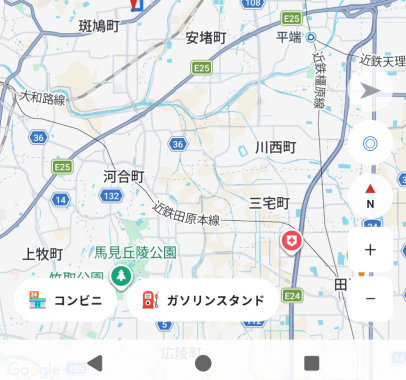
Bottom-right controls
| Current location (◎) | Re-acquires your current location and re-centers the map. Also use it to resume follow mode. |
|---|---|
| Zoom in (+) / out (−) | Widens or narrows the visible map area. |
| Compass (N) | Resets the map orientation to face north. |
Route display
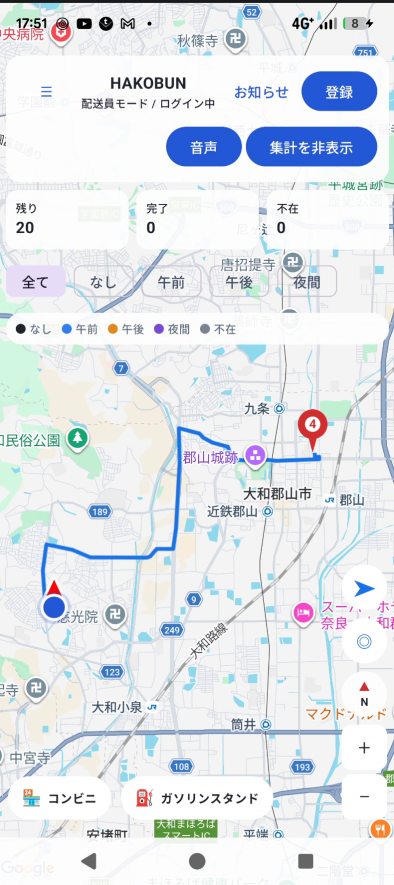
A route to the currently selected pin (or the nearest delivery, if none is selected) is drawn on the map along actual roads. Sections you've already passed disappear automatically.
Tapping the "Start navigation" button (➤) launches Apple Maps navigation to the selected destination.
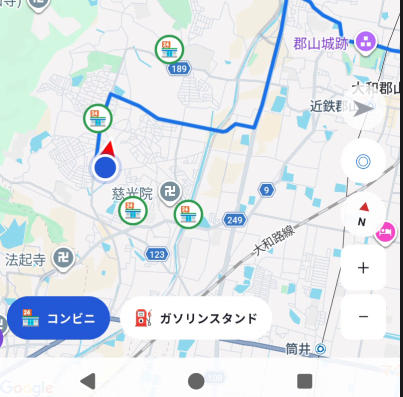
Finding convenience stores & gas stations
Turning on the 🏪 (convenience store) or ⛽ (gas station) buttons at the bottom-left of the Home screen shows nearby locations as pins on the map. Tap a pin to switch route/navigation to that location.
Reading pin numbers & colors
Delivery pins are numbered in order of distance from your current location. Colors vary by time window — check the legend near the top of the map. The currently selected pin is highlighted in red.